Fumadocs
Dhub works with Fumadocs projects that keep their content as MDX files in a GitHub repository. Import the repository and start editing pages visually. No changes to your project structure required. The one exception is the visual sidebar editor, which needs a one-time page tree adapter: see Navigation.
Getting started
Import your Fumadocs repository
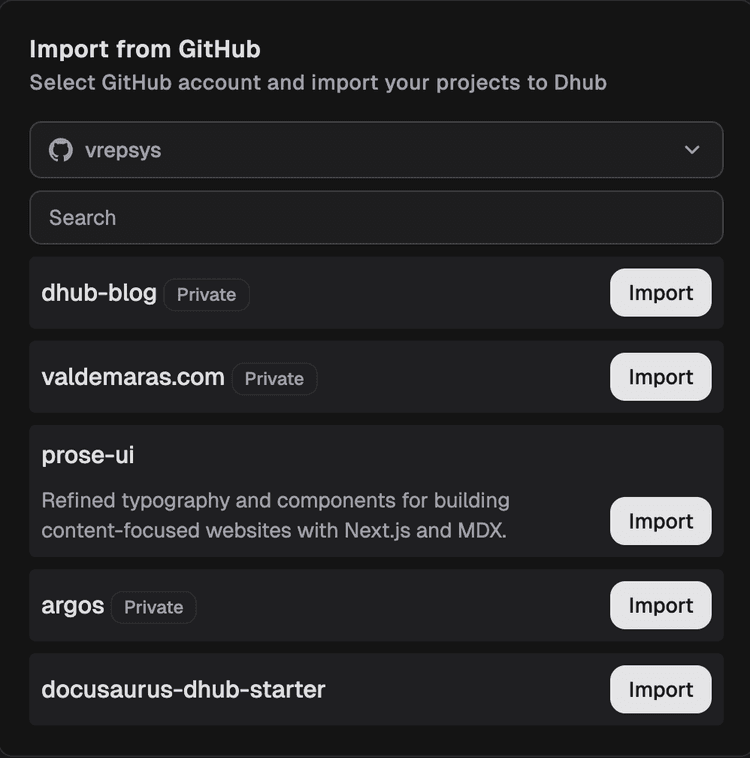
Connect your GitHub repo in Dhub. Find your project in the list and hit Import.
Check the framework and folders
Dhub looks for a
source.config.tsfile next to apackage.jsonthat depends on Fumadocs. When it finds them, Framework is set to Fumadocs for you, also when the docs app sits in a folder of a larger repo: the dialog then says where it was found, for example "Detected Fumadocs in /apps/docs".Two folders are filled in, and you can change them if your project is laid out differently:
- Content directory: the folder whose paths match your page URLs. With pages in
content/docsserved under/docs, that is/content. - Images directory: where uploaded images go. The default is
/public.
Pick the branch you want to work on,
mainor a development branch.- Content directory: the folder whose paths match your page URLs. With pages in
Edit content visually
Open any MDX file. Dhub renders it in a WYSIWYG editor with callouts, cards, tabs, tables, code blocks and images as blocks you edit in place.
Push changes to GitHub
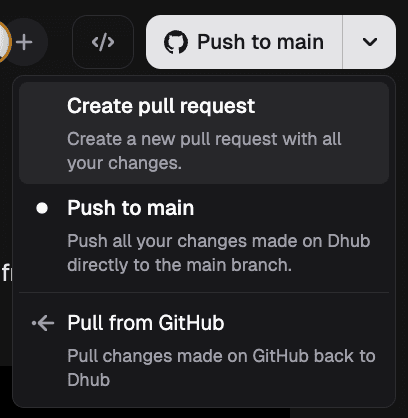
Push directly or create a pull request. Dhub creates the branch and opens the PR for you, then keeps updating the same PR until it's merged or closed. Your team's existing review workflow stays the same.
Starting from scratch instead? Use the Dhub-ready Fumadocs starter. It comes pre-configured, including visual sidebar navigation.
What Dhub supports
Dhub reads and writes the MDX that Fumadocs expects:
- Callouts:
<Callout>blocks with the Fumadocs types (info, warn, error, success, idea) and an optional title - Cards:
<Cards>grids, where each<Card>has a title and its own content - Tabs:
<Tabs items={[...]}>with a<Tab>for each panel - Tables: edit tables without writing Markdown pipe syntax
- Images: drag and drop images into the editor. Dhub saves them to your
/publicfolder with the correct path, and writes a caption as<figure>and<figcaption> - Code blocks: syntax-highlighted code blocks with language selection and titles. Other options you set on a code block, such as
lineNumbersortab="...", are kept as they are - Headings: custom anchors (
[#my-id]) and table of contents markers ([!toc]) are kept - Frontmatter: edit title, description and other fields through a form UI
Things to set up in your project
Editing pages needs no setup. Three features depend on something in your project:
-
Tabs. Fumadocs does not register
TabsandTabby default, and Dhub writes them without import lines. If your pages don't use tabs yet, add them to your MDX components once:mdx-components.tsximport defaultMdxComponents from 'fumadocs-ui/mdx' import * as TabsComponents from 'fumadocs-ui/components/tabs' import type { MDXComponents } from 'mdx/types' export function getMDXComponents(components?: MDXComponents): MDXComponents { return { ...defaultMdxComponents, ...TabsComponents, ...components, } } -
Image captions and alignment. A captioned or aligned image is written as
<figure data-align="center">with a<figcaption>. Fumadocs has no styles for these, so add a few lines of CSS forfigureandfigcaptionif you use them. The starter has an example inapp/global.css. -
The visual sidebar editor. Dhub saves your sidebar to
navigation.json, and a short adapter turns it into the Fumadocs page tree. See Fumadocs sidebar integration. Until you add it, your sidebar keeps coming from your folders andmeta.jsonfiles, and Dhub does not touch those.
Other components
Components Dhub does not edit visually, such as Steps, Accordions, Files, TypeTable or your own, appear as embedded MDX blocks. You can edit the JSX directly within the block while still using the visual editor for the content around it.